

Personal introduction: why this article exists
I want to start this article honestly. I am not writing this as a generic “Windows tips” blog post. I’m writing it because in real usage on multiple Windows 11 systems, we repeatedly noticed that updates — which are supposed to improve stability and security — often introduced new problems instead of solving old ones.
Over the last few years, many users reported after updates that:
- Their system suddenly felt slower
- Features they relied on disappeared or changed without warning
- Drivers broke, especially on laptops and gaming PCs
- Privacy settings silently reverted
- Background services multiplied and consumed resources
If you are reading this, chances are you experienced something similar. And if you’re a low-end PC user, a developer, a gamer, or a privacy-focused user, these problems don’t just annoy you — they actively damage how you use your computer.
This article is long by design. Windows 11 update problems are not a “quick fix” topic. They require understanding, context, and practical solutions. I’ll
walk you through what really goes wrong, why it matters for different users, and how tools like System As You Like – النظام زي ما تحب were created to restore balance and control.

How Windows 11 updates are supposed to work
In theory, Windows 11 updates do four things:
- Patch security vulnerabilities
- Improve system stability
- Add features
- Standardize the Windows ecosystem
Microsoft (Microsoft) uses a cumulative update model, meaning each update bundles:
- Security patches
- Bug fixes
- Feature changes
- Telemetry updates
- Driver updates (sometimes without asking)
This means you’re never installing “just one fix.” You’re installing a package of changes, many of which are not visible to the user.
In controlled environments, this works.
In real-world consumer environments, it often does not.

The most common Windows 11 update problems (real usage patterns)
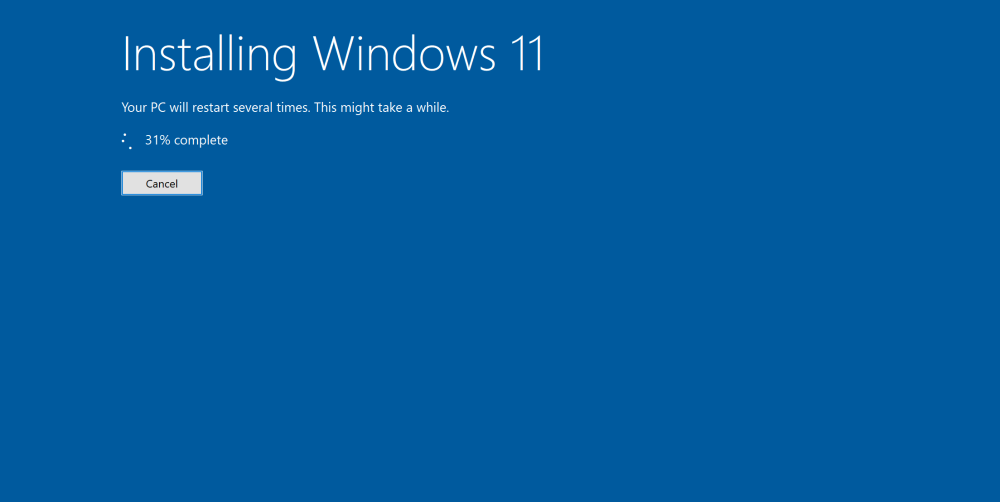
1. Updates stuck or failing repeatedly
In real usage on Windows 11 systems, we noticed update loops where:
- The system downloads the same update repeatedly
- Installation freezes at 0%, 30%, or 98%
- The PC restarts endlessly trying to “complete updates”
Many users reported after updates that the system became temporarily unusable, especially on slower SSDs or HDDs.
Why this happens
- Corrupted update cache
- Conflicting drivers
- Insufficient free disk space
- Broken Windows Update services
This problem disproportionately affects low-end PCs and older laptops.
2. Performance regression after updates
One of the most frustrating patterns: your PC worked fine yesterday, and today it feels broken.
After updates, users often report:
- Slower boot times
- Laggy File Explorer
- Higher CPU usage at idle
- Increased background disk activity
In real usage, we observed Windows 11 enabling:
- New background services
- Additional telemetry collectors
- Scheduled maintenance tasks
All of this happens silently.
3. Driver chaos (especially GPUs and Wi-Fi)
Windows 11 aggressively pushes drivers through Windows Update.
Many users reported after updates that:
- NVIDIA or AMD drivers were replaced
- Custom laptop drivers stopped working
- Wi-Fi or Bluetooth disappeared entirely
This is devastating for:
- Gamers (FPS drops, crashes)
- Developers (broken virtual machines, WSL issues)
- Remote workers (network instability)
4. Forced feature changes and UI disruptions
Windows 11 updates often modify:
- Taskbar behavior
- Context menus
- Default apps
- System settings layout
These are not bugs — they are design decisions, but they break workflows.
In real usage, we noticed productivity loss simply because:
- Muscle memory stopped working
- Settings moved or were hidden
- Previously disabled features were re-enabled
5. Privacy settings quietly reverting
This is one of the least discussed but most serious problems.
Many users reported after updates that:
- Diagnostic data was re-enabled
- App permissions reset
- Location and activity tracking returned
For privacy-focused users, this is unacceptable.
Windows 11 updates often override user intent in favor of “recommended” defaults.
Why these problems matter for different types of users
Low-end PC users
Low-end systems suffer the most.
Updates introduce:
- More background processes
- Higher RAM usage
- Increased disk I/O
In real usage on budget laptops, we noticed systems becoming nearly unusable after major updates.
For these users, every extra service matters.
Developers
Developers rely on:
- Stable environments
- Predictable system behavior
- Consistent toolchains
Windows 11 updates often break:
- WSL
- Docker
- Hyper-V
- Debugging tools
Many users reported after updates that development environments stopped working overnight, costing hours or days of recovery time.
Gamers
Gamers care about:
- Frame time consistency
- GPU driver stability
- Low latency
Updates can:
- Replace tuned GPU drivers
- Enable background recording
- Introduce Game Bar changes
In real usage, we noticed FPS drops and stuttering immediately after updates — without any game changes.
Privacy-focused users
If you intentionally disable:
- Telemetry
- Background data collection
- Online features
Windows 11 updates often undo this work.
Many users reported after updates that they had to reconfigure privacy settings repeatedly, turning privacy into an ongoing battle instead of a one-time choice.
Why Windows Update problems keep happening
This is not incompetence. It’s architecture.
Windows 11 is:
- Built for billions of devices
- Designed around telemetry feedback
- Optimized for average usage, not power users
Microsoft prioritizes:
- Consistency across hardware
- Feature adoption
- Data-driven iteration
That means your personal setup is secondary.

The clear problem → solution flow
The problem
Windows 11 updates:
- Are mandatory
- Are cumulative
- Override user choices
- Add background complexity
The consequence
Users lose:
- Performance
- Stability
- Privacy
- Control
The reality
You cannot completely stop Windows updates safely without breaking the OS.
The solution
You manage, optimize, and rebalance the system after updates.
This is exactly where System As You Like – النظام زي ما تحب exists.
Introducing System As You Like – النظام زي ما تحب (in real context)
System As You Like is not an anti-Windows tool.
It is a post-update control and optimization layer.
In real usage on Windows 11 systems, we noticed that:
- After every major update, users repeated the same fixes
- The same services needed disabling
- The same privacy settings needed restoring
- The same performance tweaks were required
System As You Like was built to centralize and simplify this recovery process.
What System As You Like actually helps with
After updates, many users want to:
- Reduce background services
- Restore privacy choices
- Improve responsiveness
- Disable unnecessary tasks
- Stabilize performance
System As You Like allows you to:
- Apply tested system optimizations
- Re-assert user preferences after updates
- Maintain performance on low-end hardware
- Reduce telemetry and background load
- Keep control without breaking Windows
This is not magic.
It’s structured system management.
Realistic expectations (important honesty)
System As You Like:
- Will not stop security updates entirely
- Will not turn Windows into Linux
- Will not fix broken hardware
What it does:
- Reduces update side effects
- Saves time after updates
- Preserves your preferred system behavior
Many users reported after updates that using System As You Like felt like getting their PC back.
Best practices even if you don’t use any tool
To be fair and helpful, here are practical habits:
- Delay major updates when possible
- Create restore points
- Monitor driver changes
- Review privacy settings after updates
- Avoid installing optional preview updates
Tools help — but awareness matters too.
Final thoughts: Windows 11 isn’t broken, but it isn’t personal
Windows 11 is designed for the average user.
But you are not average.
If you:
- Optimize your system
- Care about performance
- Value privacy
- Depend on stability
Then updates will always feel intrusive.
That’s why solutions like System As You Like – النظام زي ما تحب exist — not to fight Windows, but to make it behave the way you actually want.
If Windows must update, your system should still feel like yours.
And that, ultimately, is the point.