

Part 1: Diagnosing the Problem – The Real Reasons Behind Windows 10 Performance Degradation
This section focuses on defining the problem in a way that directly speaks to the reader’s frustration.
1. Opening Hook & The Promise
Start with a user’s experience: A once-fast PC has slowed down dramatically after updates.
The promise? A smarter, safer, and complete solution — not just another list of manual tweaks.
2. Deep Diagnosis: Why Does Windows 10 Slow Down?
A Brief Background
Windows 10 evolved from a lightweight OS to a bloated “service platform,” adding layers of unnecessary complexity.
Key Performance Killers:
- Excessive Background Services: Many Windows services run constantly without benefiting the average user.
- Telemetry Accumulation: Constant data collection by Microsoft eats CPU and network bandwidth over time.
3. The Four Most Destructive Windows 10 Performance Issues
A. RAM Hogs
Features like Superfetch, Windows Update services, and cache-heavy tools quickly eat up memory.
B. Bloatware and Ads
Pre-installed apps, live tiles, and Store promotions consume resources and distract the user.
C. Heavy Visual Effects
Animations and transparency effects look nice, but they hammer both old and modern GPUs.
D. Privacy Nightmares
A lack of control over what’s being shared, tracked, or activated in the background.
Part 2: "System As You Like" – Engineered to Optimize Windows 10 from the Core
This part introduces the software as a scientific and reliable solution to the diagnosed issues.
1. Why Manual Fixes Often Fail
- Too Complex, Too Risky: Registry edits, service tweaking, or script-based fixes can break the system.
- Temporary Relief: Major Windows updates reset many performance and privacy settings every few months.
2. The Power of C++/WinRT
What is C++/WinRT?
A native language that speaks directly to the core of Windows — no abstraction layers, no runtime dependencies.
Benefits:
- Tiny Footprint: Minimal CPU and memory usage
- Instant Response: Immediate execution of actions
- Unrivaled Safety: Talks directly to Windows APIs, no dangerous CMD or PowerShell hacks
Compare with Competitors
Many other “optimizers” are built on bloated frameworks like Electron — they slow down more than they help.
3. Ultimate Flexibility – Choose the Performance Level You Need
A. Essential Settings (Daily Use)
Perfect for casual users who want a faster PC without sacrificing features.
Focus: Remove tracking, disable unnecessary services, clean up clutter.
B. Standard Settings (Balanced Mode)
A great mix of performance and user experience.
Focus: Removes consumer-facing features like Widgets and Spotlight, improves File Explorer.
C. Maximum Settings (Extreme Performance)
Ideal for gamers or power users.
Focus: Disables visual effects, clipboard history, Snap Layouts, and optimizes secondary services for RAM savings.
Bonus: You can switch between these modes at any time — safely and instantly.
Part 3: The Technical Engine – How "System As You Like" Solves Each Problem
This section validates the product by showing how it works, clearly and confidently.
1. Battling RAM Hogs
- Service Optimization: Disables unused services like Print Spooler or Fax if no printer is connected.
- Background Process Control: Manages startup apps and services that creep in over time.
- Pagefile Tuning: Optimizes virtual memory settings to reduce memory pressure.
2. Destroying Bloatware and Ads
- Remove Unwanted UWP Apps: Clean removal of apps like Paint 3D or Mixed Reality.
- Disable Windows Ads: Shut off promotions in Start Menu, taskbar, and notifications.
3. Mastering Visual Performance Control
- Disable Animations & Transparency: Removes flashy visuals for a snappier experience.
- File Explorer Tweaks: Eliminates cluttered views like Home and Gallery for faster access.
4. Unmatched Privacy Protection
- Close All Telemetry Ports: Blocks Diagnostic Data, Feedback Frequency, and Advertising ID tracking.
- Clean Up Microsoft Edge: Turns off tracking features and unnecessary ads inside the browser.
- Permission Manager: A unified interface to control app access to mic, camera, and location.
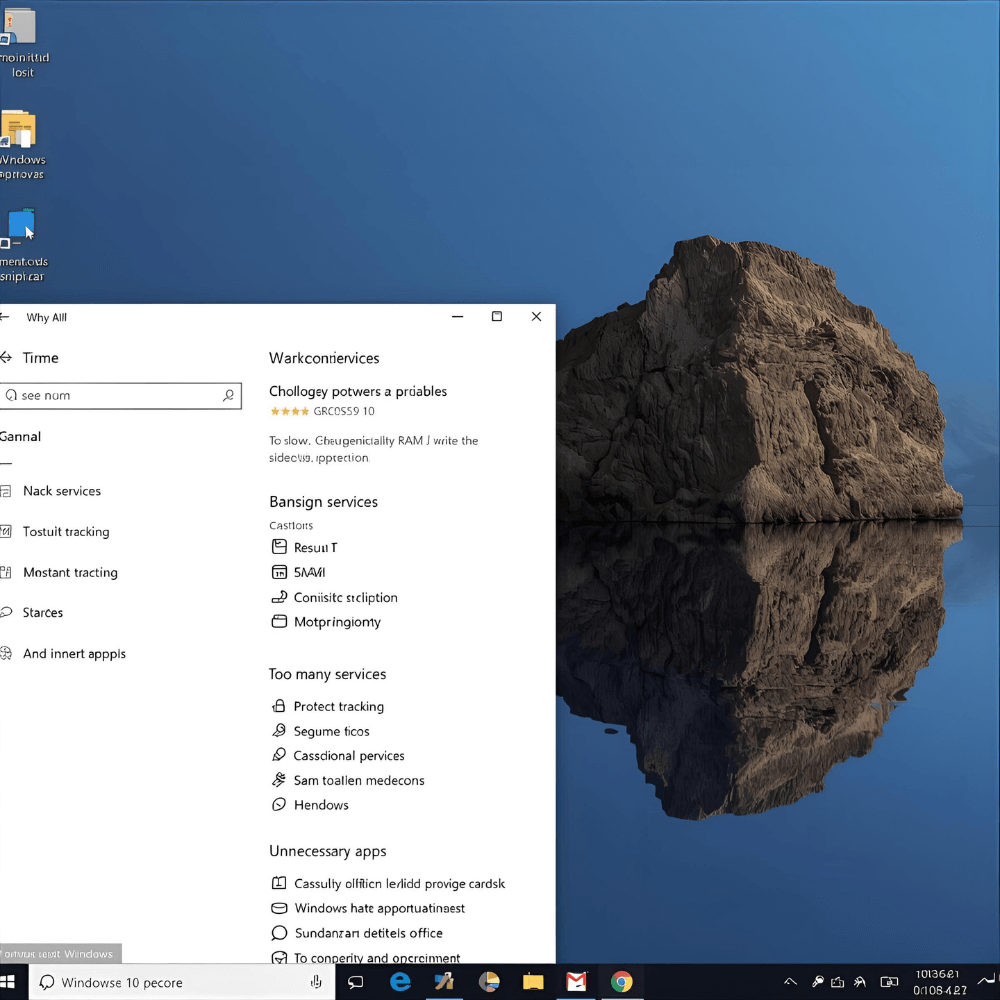
Part 4: Real-World Impact – Designed for the User, Built for Results
This section highlights the user experience and tangible day-to-day benefits.
1. Designed for Arabic-Speaking Users
- Full Arabic UI makes advanced optimization accessible to everyone — no tech background needed.
- Clean, intuitive interface replaces complexity with clarity.
2. Real Benefits for Gamers, Professionals, and Everyday Users
- Gamers: Better FPS, reduced input lag, cleaner RAM.
- Professionals: Faster boot times, smoother multitasking, lighter update disruptions.
- Everyone: No more random slowdowns or settings resets after updates.
3. Transparent Licensing & Flexible Plans
- One license, five devices
- No hidden charges
- Subscription model with continuous updates and real support
Part 5: The Future, the Community, and the Call to Action
This is where the reader is encouraged to act — confidently.
1. The Future of Windows 10 & 11
Windows 10 will be around for years — and Windows 11 still has its issues.
“System As You Like” is ready to evolve with both.
2. Testimonials & Success Stories
- Old Laptop User: “My PC came back to life thanks to System As You Like.”
- Gamer: “No more lag in my games — it just works.”
3. The Challenge: Try It for Free
We dare you to feel the difference.
30 days free, no credit card, no gimmicks.
4. Final CTA: Your Fast, Private Windows Experience Starts Now
Fast. Private. Stable.
No more frustration. No more complexity.
🎯 Download your free trial of System As You Like today — and rediscover how Windows should feel.