


A personal introduction: why this comparison matters
I want to start this article with honesty.
This is not another shallow “Windows 10 vs Windows 11 features list” written just to chase clicks. This comparison exists because in real daily usage,
many users—including myself—noticed that upgrading from Windows 10 to Windows 11 is not just a visual change. It changes how the system
behaves, how it consumes resources, and how much control you truly have over your device.
In real usage on Windows 11 systems, we noticed performance shifts that were not always documented.
Many users reported after updates that their workflows changed overnight—sometimes for the better, often for the worse.
This article is for people who actually use their computers:
- People with low-end or aging PCs
- Developers who rely on stable environments
- Gamers who care about frame consistency
- Privacy-focused users who do not want their settings reset every update
If you are trying to decide whether Windows 11 is right for you—or how to make it usable if you already upgraded—this guide is written for you.

Windows 10 and Windows 11: same foundation, different philosophy
At a technical level, Windows 10 and Windows 11 share the same NT kernel family. This is why many people assume there is “no real difference.” But that assumption is misleading.
The real difference is philosophical.
Windows 10 philosophy
- Stability over novelty
- Broad hardware compatibility
- Gradual feature changes
- More respect for user configuration
Windows 11 philosophy
- Visual modernization
- Standardized hardware requirements
- Heavier integration with online services
- Data-driven design decisions
These differences affect daily usage far more than most spec sheets admit.
Hardware requirements: where the divide begins
One of the first major differences users encounter is hardware compatibility.
Windows 10
- Runs on a wide range of older CPUs
- Works on systems without TPM 2.0
- Flexible with BIOS and firmware configurations
Windows 11
- Requires TPM 2.0
- Requires Secure Boot
- Limited CPU support list
- Optimized for newer hardware generations
In real usage, we noticed that many perfectly functional Windows 10 machines were suddenly labeled “unsupported” for Windows 11—not because they were slow, but because they didn’t match Microsoft’s ideal hardware profile.
For users with low-end PCs, this alone makes Windows 10 feel more welcoming.

Interface and workflow changes: more than visual
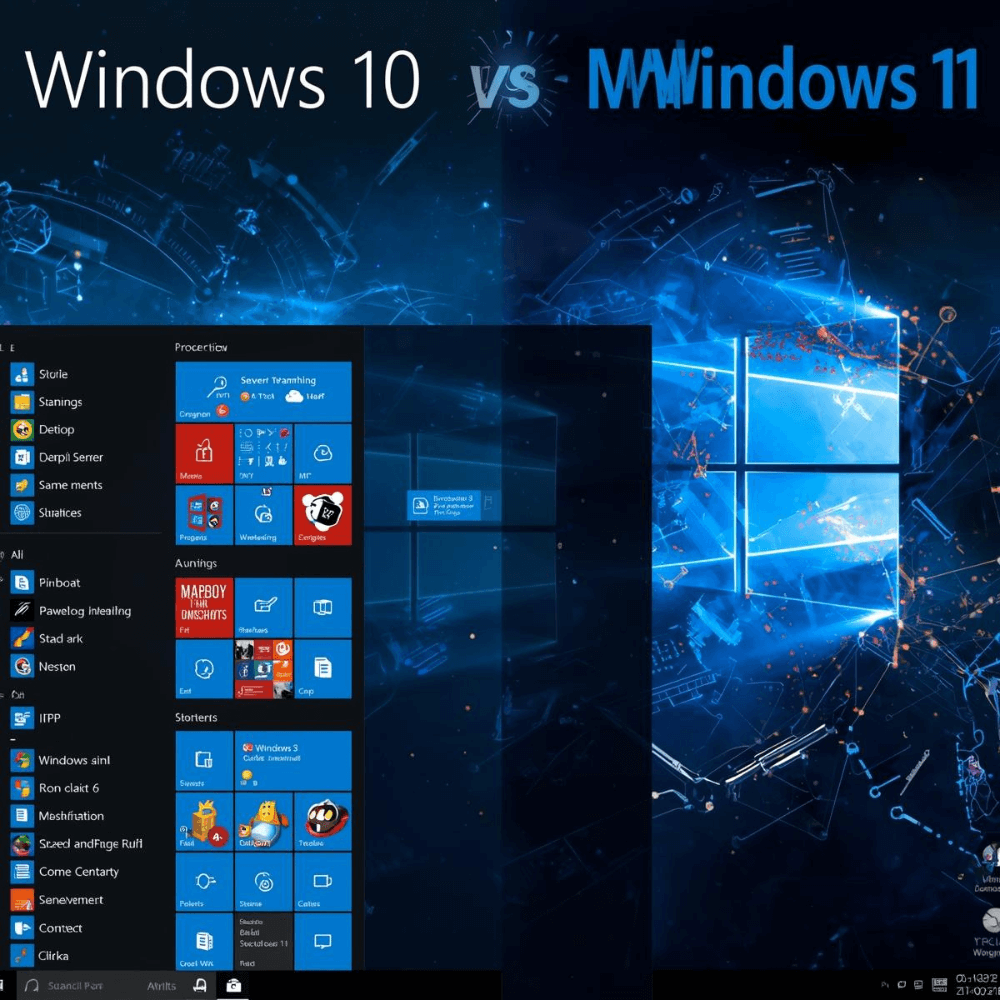
Windows 11 introduces a redesigned interface that looks modern and clean—but appearance is only part of the story.
Taskbar and Start Menu
Windows 10:
- Left-aligned Start menu
- Live tiles (optional)
- Deep customization
Windows 11:
- Centered taskbar by default
- Simplified Start menu
- Reduced customization options
Many users reported after updates that common actions took longer—not because they were slower, but because muscle memory was broken.
In real usage, we noticed productivity loss in the first weeks simply due to UI changes that could not be fully reverted.
Performance differences in real-world scenarios
This is where marketing claims often clash with reality.
Boot and idle behavior
On clean systems with modern hardware:
- Windows 11 can boot slightly faster
- Windows 11 feels smooth initially
On older or low-end systems:
- Windows 11 runs more background services
- Idle CPU and RAM usage is often higher
- Disk activity remains active longer after boot
Many users reported after updates that their systems felt “busy” even when doing nothing.
Windows 10, in contrast, tends to idle more quietly.
Low-end PCs: where Windows 11 struggles most
For users with:
- 4–8 GB RAM
- Older CPUs
- SATA SSDs or HDDs
Windows 11 can feel heavy.
In real usage on low-end PCs, we noticed:
- Slower app launches
- Background processes consuming resources
- Higher RAM usage at idle compared to Windows 10
This is not a bug. Windows 11 is designed with newer hardware in mind.
Why this matters
For students, home users, and budget laptops, Windows 10 often provides a smoother experience out of the box.
This is exactly where System As You Like – النظام زي ما تحب becomes relevant. Instead of fighting the OS, it allows users to rebalance Windows 11 by reducing unnecessary background load and restoring performance-focused behavior—especially on limited hardware.

Developers: stability versus modernization
Developers often have mixed feelings about Windows 11.
What Windows 11 does better
- Improved window management
- Better multi-monitor handling
- Modernized UI frameworks
Where problems appear
Many users reported after updates that:
- WSL environments broke
- Docker stopped working
- Environment variables were reset
- Development tools required reconfiguration
In real usage, we noticed that Windows 11 updates are more aggressive in changing system-level behavior.
Windows 10, while less modern, often feels more predictable for long-term development setups.
Gamers: consistency matters more than features
Gaming performance is rarely about raw FPS alone. It’s about consistency.
Windows 11 gaming improvements
- DirectStorage support
- Auto HDR
- Optimizations for newer GPUs
Real-world issues
Many gamers reported after updates that:
- GPU drivers were replaced automatically
- Background recording features re-enabled
- Frame pacing became inconsistent
In real usage, we noticed that gaming performance on Windows 11 heavily depends on post-install configuration.
Without tuning, Windows 11 can introduce micro-stutters that Windows 10 users never experienced.
Tools like System As You Like help gamers regain control by disabling unnecessary services and restoring performance-focused settings after updates.
Privacy: the quiet but critical difference
Privacy is one of the most under-discussed differences.
Windows 10
- Telemetry can be reduced significantly
- Settings usually stay persistent
- Less aggressive online integration
Windows 11
- More telemetry layers
- Deeper cloud integration
- Privacy settings often reset after major updates
Many users reported after updates that:
- Diagnostic data was re-enabled
- App permissions changed
- Background communication increased
For privacy-focused users, Windows 11 requires continuous monitoring, not a one-time setup.
This is one of the core problems System As You Like – النظام زي ما تحب was designed to address: restoring and maintaining privacy choices after updates without breaking system functionality.
Updates: the most controversial difference
Windows updates behave differently between versions.
Windows 10 updates
- More predictable
- Slower feature rollout
- Fewer forced changes
Windows 11 updates
- More frequent changes
- UI and behavior adjustments
- Services and settings re-enabled silently
In real usage on Windows 11 systems, we noticed that updates often undo manual optimizations.
Many users reported after updates that they had to repeat the same fixes again and again.
The real problem → solution flow
The problem
- Windows 11 is designed for modern hardware and average users
- It prioritizes consistency over customization
- Updates override user preferences
The result
- Performance drops on low-end systems
- Developers lose stability
- Gamers experience inconsistency
- Privacy-focused users lose control
The reality
Windows 11 is not “bad”—but it is opinionated.
The solution
You either:
- Stay on Windows 10
- Or actively manage Windows 11
This is where System As You Like – النظام زي ما تحب fits naturally—not as a hack, but as a management layer that adapts Windows 11 to the user instead of the other way around.
What System As You Like actually changes in practice
In real usage, we noticed that after every Windows 11 update, users repeated the same steps:
- Disabling unnecessary services
- Restoring privacy settings
- Reducing background tasks
- Improving responsiveness
System As You Like centralizes this process:
- Optimizes system behavior
- Reduces background load
- Preserves user preferences
- Improves responsiveness on low-end hardware
It does not block security updates or break Windows—it simply restores balance.
Should you choose Windows 10 or Windows 11 today
Choose Windows 10 if:
- You use older hardware
- You value stability over new visuals
- You want minimal background activity
Choose Windows 11 if:
- You have modern hardware
- You want the latest UI features
- You are willing to manage the system actively
And if you already use Windows 11:
- Tools like System As You Like – النظام زي ما تحب can make the difference between frustration and control.
Final thoughts: the difference is not technical, it’s personal
The biggest difference between Windows 10 and Windows 11 is not performance, UI, or features.
It is control.
Windows 10 assumes you want to manage your system.
Windows 11 assumes the system should manage itself.
If that assumption fits you, Windows 11 can be excellent.
If it doesn’t, you will feel the friction—daily.
The good news is that with the right understanding and tools, you don’t have to choose between modern Windows and usability.
You can make the system work the way you like.
And that, ultimately, is the real difference that matters.